Your First Bot
This guide will walk you through creating a Discord bot application and loading it with DiSky.
Part 1: Creating the Discord Bot
Section titled “Part 1: Creating the Discord Bot”First, you need to create a bot application on Discord’s Developer Portal.
-
Open the Developer Portal
Go to Discord’s Application Dashboard and log in with your Discord account.
-
Create a New Application
Click the “New Application” button in the top right corner. Give your application a name and click “Create”.
-
Create the Bot User
- Navigate to the “Bot” section in the left sidebar
- Click “Add Bot” or “Create Bot”
- Confirm by clicking “Yes, do it!”
-
Copy Your Bot Token
Under the “Token” section, click “Reset Token” if needed, then “Copy” to copy your bot token.
-
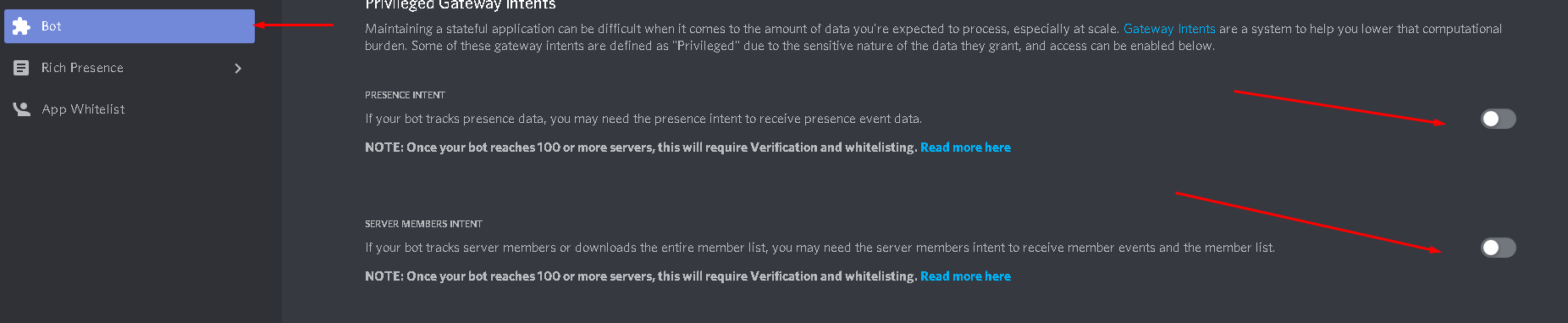
Enable Privileged Gateway Intents
Scroll down to “Privileged Gateway Intents” and enable:
- Server Members Intent
- Message Content Intent
- Presence Intent (optional)
-
Invite Your Bot
- Go to the “OAuth2” section, then “URL Generator”
- Select scopes:
botandapplications.commands - Select bot permissions (or select “Administrator” for full access)
- Copy the generated URL and open it in your browser
- Select a server and authorize
Part 2: Loading the Bot with DiSky
Section titled “Part 2: Loading the Bot with DiSky”Now that your bot is created and invited, let’s load it using DiSky.
Understanding Structures
Section titled “Understanding Structures”Basic Bot Structure
Section titled “Basic Bot Structure”Create a new file in plugins/Skript/scripts/ (e.g., bot.sk) and add:
define new bot named "MyBot":    # Your bot token from the Developer Portal    token: "YOUR_BOT_TOKEN_HERE"
    # Gateway intents (what events your bot can receive)    intents: default intents
    # Advanced options    policy: all    cache flags: default cache    compression: none
    # Auto reconnect if disconnected    auto reconnect: true
    # Don't reload connection on script reload    force reload: false
# Code to run when bot is ready on ready: send "&a[DiSky] &2%event-bot% is now online!" to consoleStructure Breakdown
Section titled “Structure Breakdown”Let’s understand each part:
| Property | Description |
|---|---|
token | Your bot’s secret token from Discord Developer Portal |
intents | Which events your bot can receive (learn more) |
policy | Cache policy for Discord entities (learn more) |
cache flags | Which entities to cache (learn more) |
compression | Gateway compression (none or zlib) |
auto reconnect | Whether to reconnect automatically if disconnected |
force reload | Whether to reload the connection on script reload (keep as false) |
Ready Sections
Section titled “Ready Sections”The bot structure supports three event sections:
on ready
Section titled “on ready”Runs once when the bot is fully loaded (including all guilds):
define new bot named "MyBot":    token: "..."    intents: default intents
    on ready:        send "&a%event-bot% is ready!" to console        # This is where you register global slash commands
Event value: event-bot - the bot instance that just loaded
on guild ready
Section titled “on guild ready”Runs when each guild is fully loaded (including all members):
define new bot named "MyBot":    token: "..."    intents: default intents
    on guild ready:        send "&a%event-bot% loaded guild &e%event-guild%" to console        # This is where you register guild-specific slash commands
Event values:
event-bot- the bot instanceevent-guild- the guild that just loaded
on shutdown
Section titled “on shutdown”Runs when the bot is about to disconnect:
define new bot named "MyBot":    token: "..."    intents: default intents
    on shutdown:        send "&c%event-bot% is shutting down!" to console
Complete Example
Section titled “Complete Example”Here’s a complete example with all sections:
define new bot named "MyBot":    token: "YOUR_TOKEN_HERE"    intents: default intents    policy: all    cache flags: default cache    auto reconnect: true    force reload: false
    on ready:        send "&a[DiSky] %event-bot% is online!" to console        send "&7Loaded &e%size of guilds of event-bot% &7guilds" to console
    on guild ready:        send "&7Guild &e%event-guild% &7is ready!" to console
    on shutdown:        send "&c[DiSky] %event-bot% is shutting down..." to console
Testing Your Bot
Section titled “Testing Your Bot”- Save your script file
- Reload your scripts with
/sk reload <filename>or restart the server - Check the console for the “is online!” message
- Your bot should now appear online in Discord!
Troubleshooting
Section titled “Troubleshooting”Next Steps
Section titled “Next Steps”Congratulations! Your bot is now online. Let’s make it do something useful.
Additional Resources
Section titled “Additional Resources”- Gateway Intents - Learn more about intents
- Cache Policy - Optimize your bot’s performance
- Getting Help - Where to get support