Graphics Customization
Anti-aliasing
Section titled “Anti-aliasing”Anti-aliasing is a technique used to make the edges of shapes smoother:
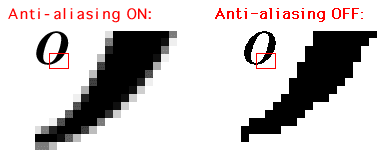
It is disabled by default. If you wish to enable it for both shapes & text, you can simply set the property to true, for instance:
set anti-aliasing of {_graphics} to trueYou can simply turn it off by setting it to false.
Stroke
Section titled “Stroke”The stroke is the outline of a shape, or how the line shape is drawn. By default, it has a width of 1 and is filled.
A stroke can have several properties:
width: the width of the stroke (in pixel)cap(optional): the cap of the stroke. Can bebutt,roundorsquare. Defaults toround.join(optional): the join of the stroke. Can bebevel,miterorround. Defaults toround.mitter limit(optional): the mitter limit of the stroke. Defaults to 10.dash array(optional): the dash array of the stroke. Defaults tonone(aka full line).dash phase(optional): the dash phase of the stroke. Defaults to 0.
Here’s some example code when drawing a rectangle: (anti-aliasing is enabled)
set stroke of {_graphics} to new stroke with width 5
set stroke of {_graphics} to new basic stroke with width 5 and miter limit 10 and dash array (2, 7) and dash phase 0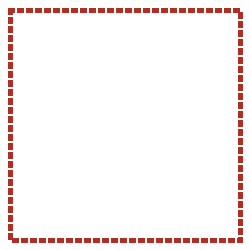
set stroke of {_graphics} to new basic stroke with width 5 and cap "round" and join "round" and dash array (2, 7) and dash phase 0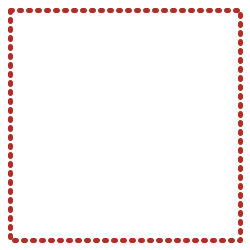
Composite Effects
Section titled “Composite Effects”Composite effects determine how newly drawn content blends with existing content on the graphics canvas. You can change the composite effect of a graphics object using:
set composite [effect] of {_graphics} to <effect>Where <effect> is one of the following constants:
Available Composite Effects
Section titled “Available Composite Effects”-
over: Places the source over the destination, respecting transparency. This is the default composite operation in most graphics contexts.
-
add: Displays the source where it overlaps with the destination, preserving the destination’s alpha. Useful for drawing within the bounds of an existing shape.
-
clear: Clears all pixels in the destination area where the source is drawn. Creates transparent areas regardless of what was there before.
-
copy: Replaces the destination with the source completely, ignoring what was previously drawn. Only the new content remains visible.
-
destination: Preserves the destination and ignores the source completely. Drawing operations have no visible effect when this composite is active.
-
destination_atop: Keeps the destination where it overlaps with the source, and displays the source elsewhere. The result shows destination content within source bounds.
-
destination_in: Keeps only the parts of the destination that overlap with the source. Creates masked effects where destination is only visible through the “shape” of the source.
-
destination_out: Keeps only the parts of the destination that don’t overlap with the source. Effectively “punches holes” in the destination using the source as a mask.
-
destination_over: Places the destination over the source. New content appears behind existing content, as if drawing underneath existing elements.
Example Usage
Section titled “Example Usage”# Set the composite effect to allow transparency when drawingset composite of {_graphics} to over
# Draw a semi-transparent rectangledraw filled shape (new rectangle with width 80 and height 80 and color (color from rgb 255, 0, 0, 128)) on {_graphics} at 10, 10
# Change composite for a masking effectset composite of {_graphics} to destination_indraw filled shape (new circle with radius 50 and color black) on {_graphics} at 50, 50When to Use Different Composites
Section titled “When to Use Different Composites”- over: For normal drawing with transparency support
- add/src_atop: For combining elements where you want to preserve destination alpha
- clear: For creating transparent cutouts
- copy: For completely replacing content
- destination_in/destination_out: For masking effects
- destination_over: For drawing behind existing content